Showing posts with label keyboard shortcuts. Show all posts

Thursday, June 21, 2007

Use "Shift" Key To Turn Off "Caps Lock"

With Windows XP, this feature is available from the Control Panel, but only when you install another Keyboard layout during the Windows Installation. You can also change this feature in the Registry.

  • Click on "Start > Run". Type regedit and press "OK". Browse down to the following key :
HKEY_CURRENT_USER\Keyboard\Layout

  • In the right pane, right click and select "New > DWORD Value". Name the new value "Attributes". Now double click on the new Attributes value. In the Value box enter "00010000" and press "OK".
  • Close the Registry and Reboot or Log Off the system to make the changes effect. Now the Caps Lock is Key will always turn Caps Lock on but you must press "Shift" Key to off the Caps Lock.

Saturday, June 02, 2007

Change The Internet Key Functionality in your Keyboard

Almost all keyboards, cheap or costly, come with special keys including an Intenet Key. You can choose to make that key load another application instead of the browser. (The keyboard drivers often provide this capability, but sometimes they don't).

To change this, in the Registry Editor, Go to :

HKEY_LOCAL_MACHINE\SOFTWARE\Microsot\
Windows\CurrentVersion\Explorer\Appkey\7.

Creat a new String Value by right-clicking in the right pane and selecting New>String Value. Enter the name as "ShellExecute". Double-Click on the newly-created String Value and enter the value as the path of the file you want to run when you press the Internet Key. Click OK.

Thursday, May 17, 2007

Lock Desktop Using [Ctrl] + [Alt] + [Del]


In the older versions of Windows, the desktop could be locked using [Ctrl] + [Alt] + [Del]. With this key combination, Windows XP starts the "Task Manager". Then how to get the log-in box again?

Here is the Tip :

While using Windows XP, lock the desktop using [Wind]+[L]. This key combination opens the Welcome Screen. To use [Ctrl] + [Alt] + [Del] to lock your computer, you can just deactive the Windows XP Welcome screen.

  • Click on Start/Control Panel, open the "Users Accounts" dialog box.
  • Select the action "Change the way users log on or off".
  • Uncheck the option "Use the Welcome screen" and click on "Apply options". The old "Windows Security" dialog box will now appear with the [Ctrl] + [Alt] + [Del] combination.
  • Click on "Lock Computer" to lock your desktop. This button is usually selected by default, just press the [Spacebar] or [Enter].
With this setting, the Welcome screen on Startup is replaced with the familiar Windows 2000 start dialog box "Windows Login".

Saturday, March 31, 2007

Simple Key Board Short Cuts.

Windows XP shortcuts on your keyboard

Keyboard shortcuts are a great way to keep things moving when you're using your computer, and they let you perform tasks without lifting your hands from the keyboard. These are some of the basics that you should know--at least if you want to cut down on the number of times you reach for the mouse every day

1. Ctrl Alt Del is the mother of all keyboard shortcuts, affectionately known as the "three-fingered salute," since it's so useful when your Windows box locks up. Pressing the combo once (simultaneously) opens the Windows Task Manager. (From within the Task Manager, you can force-quit a crashed program, see a list of processes or applications running on your machine, check performance parameters such as how hard your CPU is working, or track your network usage.) Is your machine totally locked up? Reach over, grab the mouse and click Shut Down.

2. Ctrl S saves the file you're working on. Ever lost your homework, a spreadsheet at work, or some video you've been editing? Hit Ctrl S (simultaneously) to save. Hit it early and often! (Want to open a file from within the program you're running? Ctrl O universally opens the File/Open window.)

3. Ctrl C copies text, files, or icons that you've highlighted, Ctrl V pastes them where you point your mouse (hey, you can't completely eliminate using it), and Ctrl X cuts whatever you've highlighted out of the document (or folder, photo, movie clip, or whatever it is you're working on). Ctrl A highlights the entire file you're working on or everything in a folder or on your desktop.

4. Alt Tab lets you switch on the fly between all of your open windows. Press the combination once to switch to your last open window or multiple times to switch to any other open window. Holding down Alt Tab will bring up a system window that shows you what apps are running and which one you're switching to.

5. Ever wonder why almost every Windows program has the F in File underlined, not to mention the E in Edit, and so on so forth across the top of the Window? Hit Alt that letter to open that particular menu; you can either use the arrow keys to move around within that window, or keep your eyes peeled for more underlined letters to use more Alt key combinations.

6. The Windows key (the one that looks like the Windows logo, or a flag) R opens the Run dialog. From here, you can launch a command-line window by typing cmd, but you can do a lot more. You can, for example, paste in a folder path, such as C:\Documents and Settings\[username]\My Documents\Expenses, and Windows will open it automatically. You can also use the Run dialog to open Microsoft applications such as Word, Excel, or Notepad. Just type winword to launch Word, type excel to launch Excel, and notepad to launch Notepad.

7. Windows E launches Windows Explorer, defaulting to My Computer.

8. F2 renames a selected file or folder. (This is so much easier than right-clicking!)

9. F3 launches Search if you're on the desktop or in a folder.

10. Windows M minimizes all open windows, and Windows D shows your desktop. (These results look similar, but they're slightly different; Windows M minimizes all windows that support the command, while Windows D actually raises the desktop to the top.) This is a great one for when the boss pops up in your cubicle. Once the boss gone, hit Shift Windows M to bring up your minimized windows, or Windows D to drop your desktop back down again.

11. F5 Makes Refresh to the page.

Friday, March 30, 2007

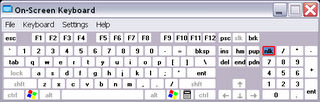
Get the keyboard on your desktop screen

Do you want to use an onscreen keyboard .Its simple:

Just go to start press run.Now type osk and press enter.

You will get something like this


Wednesday, February 28, 2007

Explorer Shortcut Keys

• F4 - Displays the Combo Box

• F5 - Refresh the display

• Ctrl+Z - Undo last action

• Backspace - Go up one directory

Minimizing All Windows

To minimize all windows:

1. Press Ctrl-ESC to bring up the Task Bar

2. Press Alt-M

This makes it a lot easier to minimize windows when all your open applications are full screen.

Tuesday, February 20, 2007

What is the use of Windows key in keyboard

Just pressing the windows key alone will show the 'start' menu. But you can also use this key for many other shortcuts when combining this key with another letter. Here are the list of windows key shortcuts.

Win key + R : To open 'Run' box in Start Menu

Win key + F : To 'Find' window in Start menu

Win key + E : To open Windows Explorer

Win key + Pause/Break : To open System Properties

Win key + M : All open windows will be minimised

Win key + Shift + M : All minimised windows will open

Win key + D : Will show all minimised windows

Win key + Tab: Will rotate and select programs in the task bar

Keys for Special Symbols

To get † symbol use Alt+0134

To get ‡ symbol use Alt+0135

To create the trade mark (™) symbol use Alt+0153

To get bound sterling (£) symbol use Alt+0163

To get the Japanese currency yen (¥) symbol use Alt+0165

To get copy right symbol (©) use Alt+0169

To get registered trade mark symbol (®) use Alt+0174

To get degree symbol (°) use Alt+0176

To show (±) symbol use Alt+0177

To show super script 2 symbol (²) use Alt+0178

To show super script 3 symbol (³) use Alt+0179

To make a center dot symbol (•) use Alt+0183

To describe ¼ use Alt+0188

To describe ½ use Alt+0189

To describe ¾ use Alt+0190

To see more combinations of symbols visit at http://home.earthlink.net/~awinkelried/keyboard_shortcuts.html

Monday, February 19, 2007

What is sticky keys? How to enable sticky keys

While using computers, many functions are accomplished by pressing two keys together. For example when you press Ctrl + C, you can copy the selected text. But many people find it difficult to press two keys together. That is, they will just press the second key, which means when they press the second key they will release the first key.

For these people, Windows provides a solution. Even whey you press the two keys with a gap in between, you can configure windows to consider as if you pressed them together. This feature is called 'Sticky keys'. To enable sticky keys in Windows follow these steps.

* Select Start->Settings->Control Panel

* Click on the 'Accessibility Options'.

* Then select 'Keyboard' and then select the 'Use Sticky Keys' check box.

* Then click on 'OK'.

From now on you can press Ctrl + C or any other dual keys one by one but windows will take it as pressing together.

Saturday, February 17, 2007

Disabling the F3 Search Key

If you want to disable the ability to use the F3 key from either the Windows Explorer or Internet Explorer

1. Start Regedit

2. Go to HKEY_CURRENT_USER\Software\Policies\Microsoft\Internet Explorer\Restrictions

3. Create a Dword value called NoFindFiles

4. Give it a value of 1

5. Reboot