- Right click on the Taskbar and select the "Properties" context command. Once the "Taskbar" and "Start Menu Properties" dialog box appears, go to the "Taskbar" tab and disable the "Display Thumbnail Previews" option. Confirm by "OK", the change will effective immediately. If you want to activate it later, simply activate the option again.
Tuesday, July 03, 2007
Vista Tip : Disabling Thumbnail Preview In The Taskbar
Saturday, June 09, 2007
Install Nortan Internet Security Suite Older Versions in Vista
Vista does not allow you to install older versions of Norton Internet Suite even though you paid for subscription, but if you want to install that subscription period software in Vista. Click here to download the software. Select your product package in the combination fields and then year of the version, either 2006 or 2007 version what you want. Here you will be able to download the Vista compatible version 2007 for free. Download and start install the software and it asks for the key and please give it your 2006 version key, and if you want to upgrade later use the key 2007 version. Open the program with the "Norton Internet Security" tab. Open the "Support" are and click on the "Active you product" link. To reactive your account with new key click "Next", give the new key in the dialog box, and click next. It will become functional after the online activation.
Thursday, May 10, 2007
Vista Tips : Using the new search function efficiently
Using the Basic Functions :
The new search with an input field is now accessible in the start menu in Windows Explorer and in many dialog boxes. It gives results by simply typing the first alphabets. Vista shows the hits in a list in the start menu, lucidly grouped according to "Programs", 'Files' and 'Communication'. To test, enter 'Com' in the field in the start menu-the link to the "communications" and others appears . The browser starts with just one click. In the same way, you have access to files and e-mails that contain the same alphabet combinations. The quick search comes without any grouping in Windows Explorer. Besides, the list goes on till the last folder selected and its subfolder.
Friday, April 20, 2007
Vista : Displaying Run on the Start Menu
By default, Run is not shown when you open the Start Menu.
To enable this:
- Right click on the taskbar
- Select Properties
- Click on the Start Menu tab
- Click on the Customize button
- Scroll down and check Run (it's about 2/3's of the way towards the bottom
Wednesday, April 18, 2007
Disabling Vista’s User Account Control
User Account Control (UAC) is a feature in Windows Vista that can help prevent unauthorized changes to your computer. UAC does this by asking you for permission or an administrator password before performing actions that could potentially affect your computer's operation or that change settings that affect other users.
UAC will alert you with one of the following messages:
Windows needs your permission to continue
A Windows function or program that can affect other users of this computer needs your permission to start. Make sure to ensure that it's a function or program you want to run.
A program needs your permission to continue
This will happen when a program that's not part of Windows needs your permission to start. It has a valid digital signature indicating its name and its publisher, which helps to ensure that the program is what it claims to be. Make sure that this is a program that you intended to run.
This is caused by a program that your administrator has specifically blocked from running on your computer is trying to run. To run this program, you must have an administrator unblock it.
The main reason to use UAC is to prevent malware and spyware from installing or making changes to your computer without your permission. This comes in handy when you have users who may go to inappropriate websites or download software from the Internet that may be of risk to their computer. If you trust your users or if its just you that will be using your computer and you are confident that you will not be installing anything you shouldn’t then you can turn this feature off.
1. Here is how you turn the User Account Control feature off.
2. Open User Accounts from Control Panel.
3. Click on turn User Account Control on or off.
4. Uncheck the box that says Use User Account Control to help protect your computer.
5. Click Ok. You may have to enter administrator credentials depending on who you are logged in as.
6. Restart your computer for the changes to take effect.
Flip3D Task Switching

01. The last new way to switch between applications is with the 3D switching.
02. While holding down the Windows key, press the tab key to get a 3D stack.
03. You will see a stacked series of smaller windows of your running programs, each with the view of the application.
04. Continuing to hold down the Windows key while you press the tab key, brings the next window to the front.
05. When you have the window you want, release the keys and that application and file will then be the one you can work on.
06. Alternatively you can simply click on the window you want to open. This is much faster since you don't have to spend the time to cycle through the windows.
07. You can also use the tab arrow keys or wheel mouse to scroll through pages
08. In the following example, first is Word, then Front Page. then the Desktop, then Outlook
Changing the Windows Explorer Columns
By default, the Windows Explorer displays file's Name, Date Modified, Size and Type
If you want to Add or Change these,
- Right click on any of the columns
- Check or Uncheck any times you want
- Click on More to display an extremely rich list of options to display
To Move columns
- Left click and drag the column to the location you want
Installing Vista With No Product Key
You can install Vista with no product key and have 30 days to evaluate it
- Boot from the DVD and start the installation
- Select the Language, Time and Currency, and Keyboard
- Click on Next
- Click on Install Now
- Don't enter a Product Key
- Uncheck Automatically activate Windows when I'm online
- Click on Next
- Click on No to confirm you do not want to enter a product key
- Highlight the version of Vista you want to install
- Check that it is the same edition you have purchased (if you want to enter in a product key at a later time).
- Click on Next
- Check accept the license and terms
- Click on Next
- Install a clean copy and continue as with a regular install
Sunday, April 01, 2007
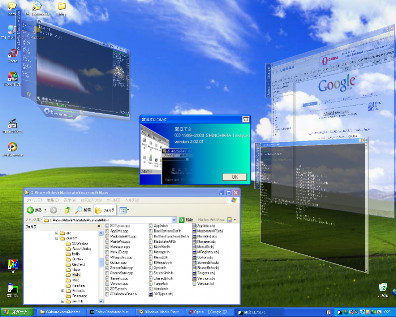
Want Vista Window Effects, but on XP?
Source : /vista-on-xp.blogspot.com/
Friday, March 09, 2007
Removing the Shortcut Arrows
02. Open the key HKEY_CLASSES_ROOT
03. Open the Key LNKFILE
04. Rename the value IsShortcut
05. Log out and back in again.
06. To reset it, just rename the key back again, and log off and back on.
Wednesday, March 07, 2007
Changing the Desktop Icon Size
To change the size.
1. Right click on the Desktop
2. Select View
3. Set it to Classic Icons
Pinning Programs to the Start Menu
These are always there and are above recently opened programs
1. Right click on the program
2. Select Pin to Start Menu
Using the Snip Tool
Next to the New button, click on the down-arrow and select what type of capture you want to do, Free Form, Rectangular, Window or Full-Screen.
Once you capture the screen, you can save it as a HTML, PNG, GIF or JPG
Vista Tips : Adding the IE 7 Icon to the desktop
1. To add it back in again, a registry edit is needed.
2. [HKEY_CURRENT_USER\Software\Microsoft\Windows\CurrentVersion\Explorer\HideDesktopIcons\NewStartPanel]
"{871C5380-42A0-1069-A2EA-08002B30309D}"=dword:00000000
3. You can download the reg file and then run it to do this automatically.
4. Then log off and back on again
Saturday, February 10, 2007
Using the Snip Tool
To access it, simply open the Startup Menu and type SNIP.or
Next to the New button, click on the down-arrow and select what type of capture you want to do, Free Form, Rectangular, Window or Full-Screen.
Once you capture the screen, you can save it as a HTML, PNG, GIF or JPG
VISTA TIPS : Access Denied to Folders
01. Right click on the Folder
02. Select Properties
03. Click on the Security tab
04. Click on the Advanced button
05. Click on the Owner tab
06. Click on the Edit button
07. In the Change owner to box, highlight your account
08. Check Replace owner on subcontainers and objects
09. Click on Apply
10. Click on Yes to replace all permissions
11. Continue to click on OK until you
Resizing Partitions ( VISTA )
01. Right click on Computer
02. Select Manage
03. Click on Disk Management
04. Right click on a partition
05. elect Shrink or Extend depending on what you want to do
Note: As with all changes to partition sizes, have a good set of backups beforehand is a good idea